How to get envelope areas from Revit for COMcheck
COMcheck asks for each envelope component with its area, orientation, and assembly. Here is what to pull from Revit, how to do it by hand, and how to automate it.
Updated
What COMcheck asks for
On the ENVELOPE tab, each row is a component with an assembly, an orientation, a building area type, and a gross area or slab perimeter, plus cavity and continuous insulation values. Windows and doors sit under the wall that hosts them.
- Exterior walls: gross area by orientation (N, E, S, W), per assembly.
- Windows and doors: area and U-factor, under the wall that hosts them.
- Roofs: area per assembly, and skylights if any.
- Floors: slab-on-grade perimeter, and areas for floors over unconditioned space.
- Building areas: which spaces are conditioned or semiheated, and their floor area.
Doing it by hand in Revit
- Create wall schedules filtered to exterior walls and grouped by type. Add an orientation parameter, or split walls by facade, to get areas per direction.
- Schedule windows and doors with their host wall and rough opening area.
- Schedule roofs by type for area, and measure slab edge length for perimeter.
- Use an Area plan to separate conditioned and semiheated space.
- Type each value into COMcheck, and keep the worksheet so you can answer "where did this number come from?"
The hard parts are orientation, keeping openings tied to the right wall, and redoing all of it when the design changes.
Getting your model ready
- An Area plan with Areas placed for each program space. Rooms alone are not enough.
- Wall and roof types named with their assembly, for example Tilt-up, IMP, or PEMB.
- The finish grade elevation from civil.
Doing it automatically
BIM Pro AI scans the open model in Revit 2025, 2026, or 2027, computes the envelope from your Area plan, and lists every component with its area, orientation, U-factor, and R-values. You check it in Revit, then export a .cxl file that opens in COMcheck-Web with the envelope filled in. When the design changes, re-scan and export again.
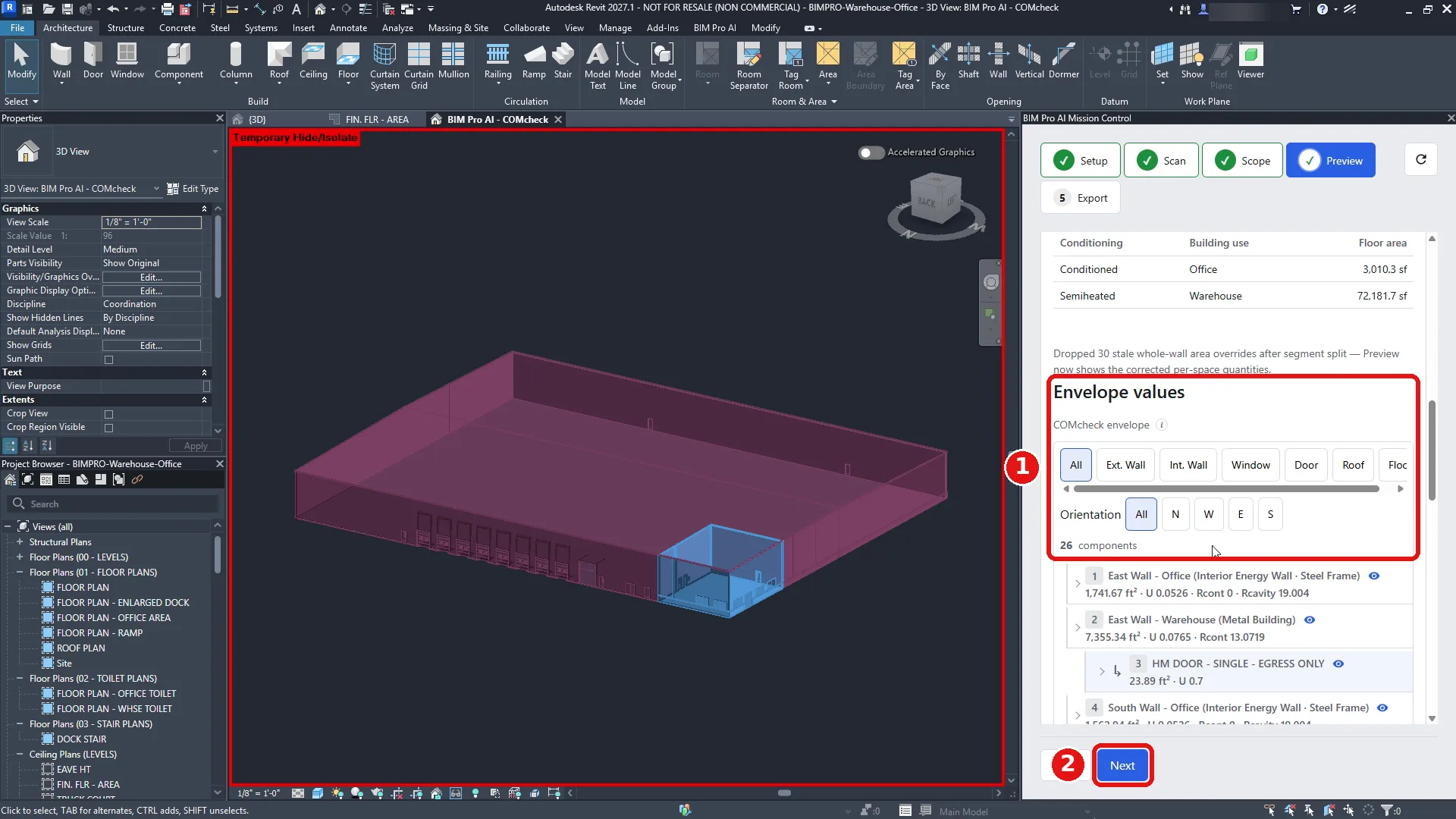
Worked example: areas from the demo project
What you would type by hand for BIMPRO-Warehouse-Office starts with two building areas from the Area plan FIN. FLR - AREA, not from rooms. 1 - WAREHOUSE is semiheated at 72,182 SF. 3 - OFFICE is conditioned at 3,010 SF. The project is checked against 90.1 (2013) Standard.
The envelope around those areas is 26 components. They are not one area per facade. A single orientation can contain more than one assembly, and openings stay under the wall that hosts them. The east office wall is its own row: steel frame, 1,741.67 ft², facing east, U-factor 0.0526, cavity R-19.004, continuous R-0. A hand schedule has to produce that same split, office wall versus warehouse wall and east versus the other orientations, and then the window and door areas have to sit under that wall rather than in a separate opening total.
The scan that produced this list read 173 Revit elements and passed Model QA with 47 passed, 0 warnings, and 0 serious. A wall schedule does not make that check. Model QA asks whether the program spaces exist before the areas are trusted. After the areas were computed, the 3D view showed the office and the warehouse in separate colors. That is the check that a space was not left outside the boundary or pulled into the wrong conditioning category.
The file those areas were written to is 2026-010_bimpro-warehouse-office_90.1_2013_standard_envelope.cxl. Uploaded to legacy COMcheck-Web, the project came in on 90.1 (2013) Standard, and the ENVELOPE tab showed the same components. The compliance result was Envelope Passes, +5%. If you are building the worksheet by hand, those are the figures to tie back to a Revit schedule: two building areas with conditioning, 26 components, and at least one wall whose area, orientation, U-factor, and both R-values you can point to in the model.
When the design changes, the hand worksheet starts over. On this project the update is a re-scan, a recompute, and a new .cxl. Fields you typed yourself inside COMcheck-Web may not carry over to the newly uploaded file, so the areas that came from Revit should be the ones you are not retyping.